
How to Switch Podcast Hosts Without Losing Your Listeners
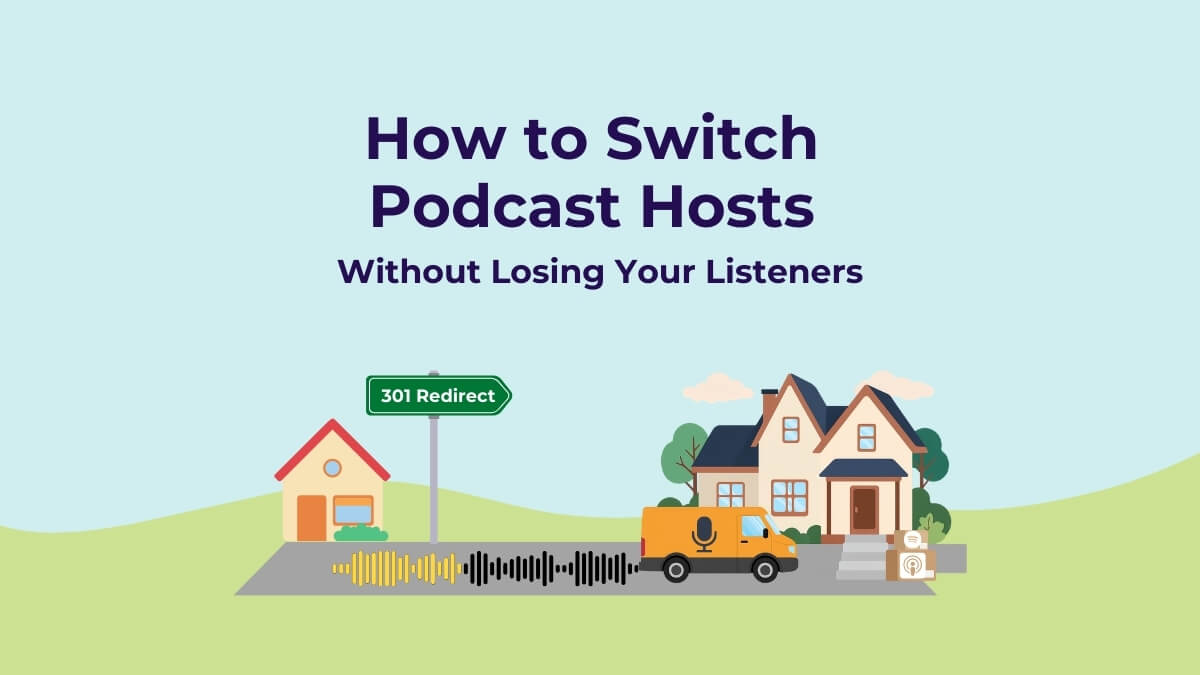
Switching where you host your podcast is easier than you think
If you've outgrown your podcast hosting provider — or you're ready to take advantage of more professional features — you're not alone. Most podcasters choose a host when they're just starting out, and what works at the beginning doesn't always keep up with a growing show. Better analytics, video integration, and dynamic ad capabilities are some of the most common reasons podcasters make the move.
It might seem daunting to change your podcast's hosting, but it's really not hard at all.
After all, "RSS" has evolved to mean "Really Simple Syndication" - and it is how a media host simply and elegantly transfers information to all the podcast websites and apps where podcasts are found.
If you're ready to migrate to a new host, here's everything you need to know to make the move smoothly.
What you'll need before you start:
1) Your username and password for both your NEW and OLD media hosts
2) Your OLD RSS Feed URL. This will look something like https://feeds.libsyn.com/your-show
3) Your NEW RSS Feed URL. This will look something like https://feeds.megaphone.fm/your-show
Here are the five steps to migrate your podcast to a new media host:
Step 1: Confirm your new hosting account looks right
Log into your new hosting account and make sure that the show description, artwork, email address, and other information is accurate.
Also check that there are no errors on the file imports (this sometimes happens if an audio file is corrupt or an incompatible audio format). If everything looks good, proceed to the next step. You may need to contact your new hosting provider's support team if images or mp3/m4a files didn't import correctly.
Note: If your podcast is part of Health Podcast Library, and you use our enterprise-grade hosting, we will create a copy of your podcast on Megaphone.fm, and you'll receive an invitation by email to manage your podcast.
Step 2: Set up a "301 redirect" from your old host
A common misperception is that you will lose subscribers if you move your podcast to a new host.
Not true.
Your listeners find and listen to your show via an app (eg Apple, Spotify) or websites (eg your own site, or Health Podcast Library), and those apps and websites pull your new episodes from your RSS feed.
When you move to a new media host, the 301 redirect automatically notifies these apps and sites.
Put simply, a 301 redirect is an internet forwarding instruction — like a change-of-address card when you move to a new home. In this case, it's your media files that have the new address.
Setting up a 301 redirect accomplishes three things:
a) It tells the app your feed has moved to a new location.
b) It instructs the app to update its records with your new RSS feed URL.
c) It forwards the app to your new feed so your latest episodes still come through without interruption.
Each hosting platform handles 301 redirects a little differently. We included links to support articles from some of the major platforms at the end of this post.
If you don't see your platform listed below, search google for "How do I set up a 301 redirect from [your hosting platform]."
Step 3: Confirm the 301 redirect is working
Once the redirect is set up, you can test it by entering your old RSS feed URL directly into your browser's address bar. If it's working correctly, it should automatically redirect to your new feed (something like https://feeds.megaphone.fm/your-show).
If it doesn't redirect right away, wait 15 minutes and try again.
Once the redirect is in place, apps like Apple Podcasts and Spotify will update their records within about 24 hours. If you want to speed things up, you can log into each app where your show is registered and manually update the RSS feed — but this isn't required.
Note: Note: As soon as your new hosting account is active, start publishing new episodes from there. Your previously published episodes will already be available on the new host — just make sure all future episodes go out from the new platform.
Step 4: Start publishing from your new host right away
As soon as your new hosting account is active, begin publishing all new episodes from there. Your previously published episodes will already be available on the new host (that's what we checked in Step 1). The important thing is to make sure new episodes go out from the new platform from this point forward.
If you have questions while getting set up, Megaphone has a support chat available Monday to Friday, staffed by real humans! They also have a support library that is stocked with helpful articles and answers to frequently asked questions. Plus, if you're a member of Health Podcast Library, our support team is always happy to help.
Step 5: Wait at least 30 days to wrap up with your old host
There are three things to take care of before you fully close out your old hosting account.
A) Keep your old account active for at least 30 days
This gives the 301 redirect time to propagate to all the podcast directories and apps. During this period, keep an eye on your download stats on the old host — you should see them gradually drop toward zero as apps update to your new feed. A small number of occasional downloads is completely normal; these are typically bots or old links that are not a meaningful part of your audience.
B) Download your historical data
Download statistics don't transfer from one host to another, so before you close your account, log in and grab every report your old host makes available — episode downloads, audience demographics, device and app breakdowns, and anything else on offer. Most platforms provide CSV and PDF exports. Once that data is gone, it's gone.
C) Cancel your old hosting account
When you're ready to cancel, confirm with your old host how long they will keep the 301 redirect active after your billing ends. Some hosts maintain it indefinitely, others cancel it when your subscription lapses. Knowing this gives you peace of mind — and if the redirect has an expiration date, you'll want to make sure all major platforms have fully updated to your new feed before you close the account.
That's it! Now, take full advantage of the services your new host offers.
Happy podcasting!
For your convenience, here are links to articles about how to set up 301 redirects from some popular podcast hosts:
Acast - Email them at [email protected] with a request to do a 301 redirect to your new feed on Megaphone.


